Expense Report
The Expense Report section under Reports in the PerksPe Web admin dashboard allows administrators and HR personnel to view, filter, audit, and export all business expenses submitted by employees. This centralized dashboard streamlines tracking reimbursement statuses, checking vendor names, matching approvals, and generating custom downloads for accounting.
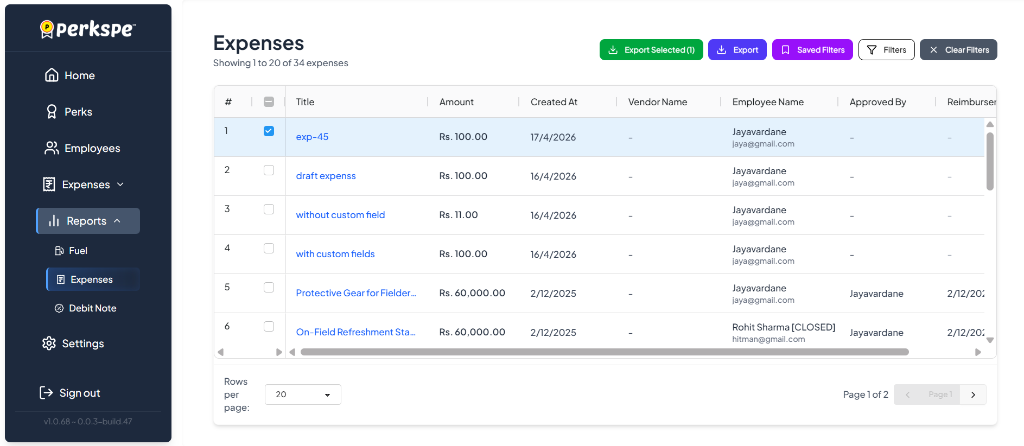
The Expense Report interface displays a comprehensive table listing all employee expenses. Here, you can review details like the expense title, amount, creation date, vendor name, employee name, approver, and reimbursement details.
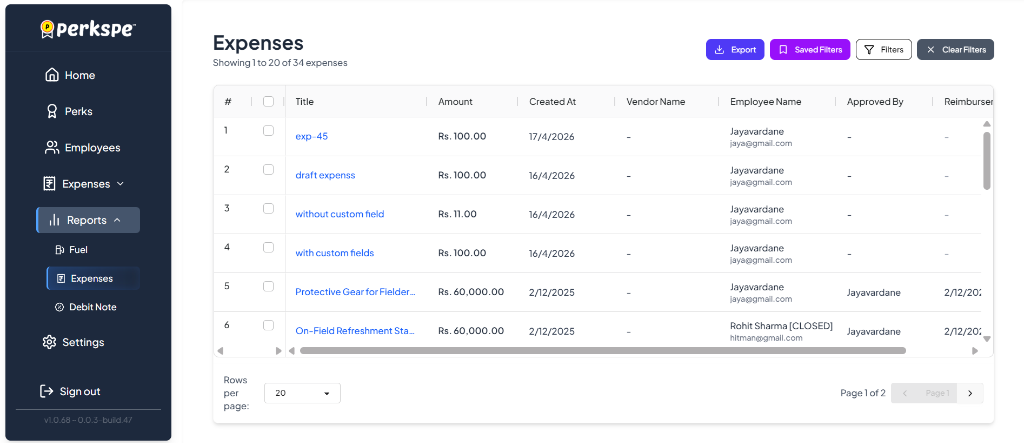
Table Columns Breakdown
- #: The row index for each expense record.
- Checkbox: Select individual or multiple expenses to perform bulk actions.
- Title: The descriptive name of the expense submission. Click to view full details.
- Amount: The monetary value of the expense.
- Created At: The date on which the expense was originally submitted.
- Vendor Name: The merchant or vendor associated with the transaction.
- Employee Name: The name and email address of the employee who submitted the expense.
- Approved By: The name of the manager or administrator who approved the expense submission.
- Reimburser: Details of the reimbursement, including the name of the reimburser and the date the reimbursement was processed.
You can manage and filter the report using the control buttons located in the top-right corner of the table.
Export
Download a complete export of all expenses currently in the system.
Filters
Narrow down the table list by employee, date range, amount, or custom fields.
Saved Filters
Quickly load a saved set of filtering criteria.
If you only need to download specific expense records, you can perform a bulk export.