Pause & Resume a Perk
Temporarily stop a perk without deleting it. Pausing is ideal when you need to hold a benefit during a budget review, seasonal change, or policy update — and you can reactivate it later with one click.
Pause vs. Close — Which Should You Use?
⏸️
Pause (Reversible)
Temporarily hold a benefit. You can resume it anytime.
❌
Close (Permanent)
End a program permanently. This action cannot be reversed.
How to Pause a Perk
1
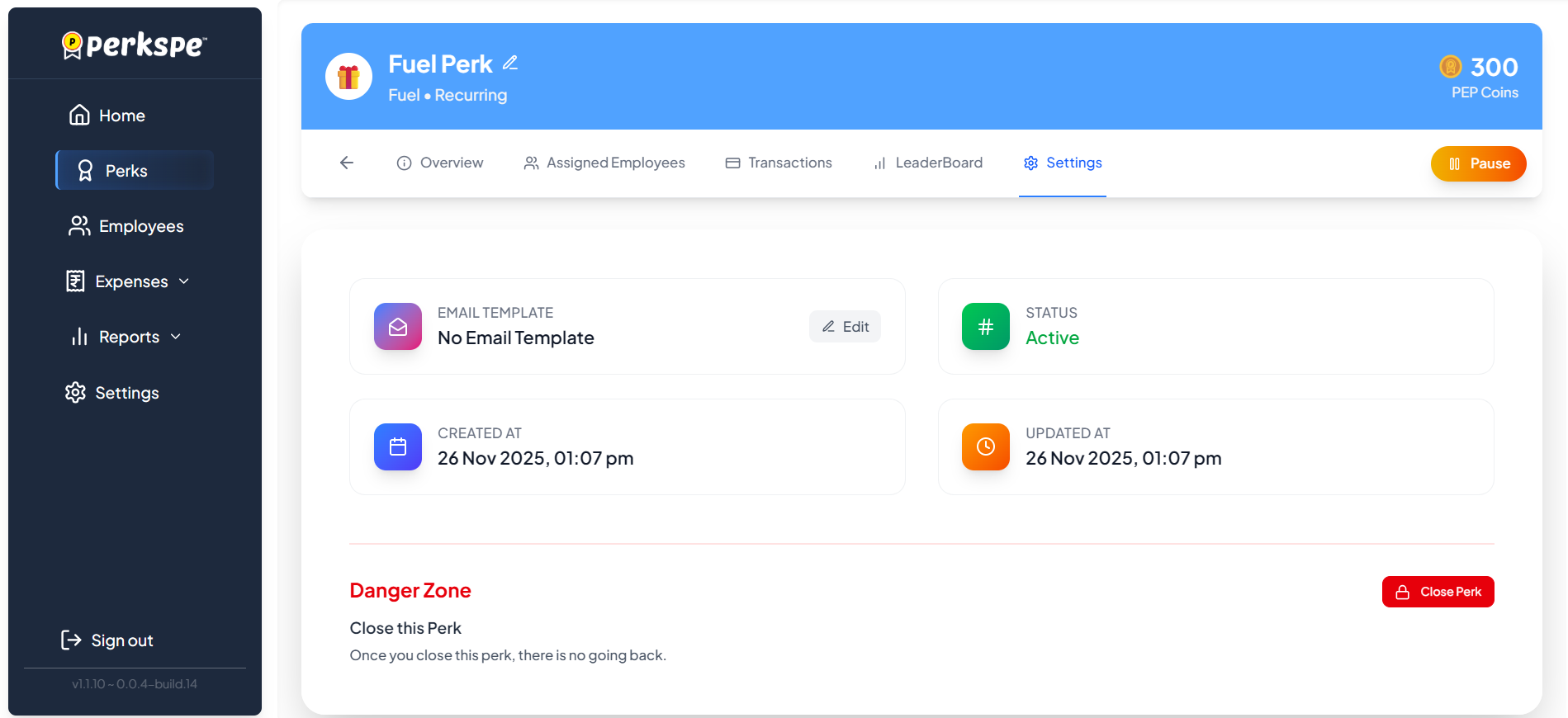
Open PerksFrom the sidebar, click Perks.
2
Select PerkClick on the perk you want to pause.
3
Settings TabOpen the Settings tab and click the orange Pause button.
4
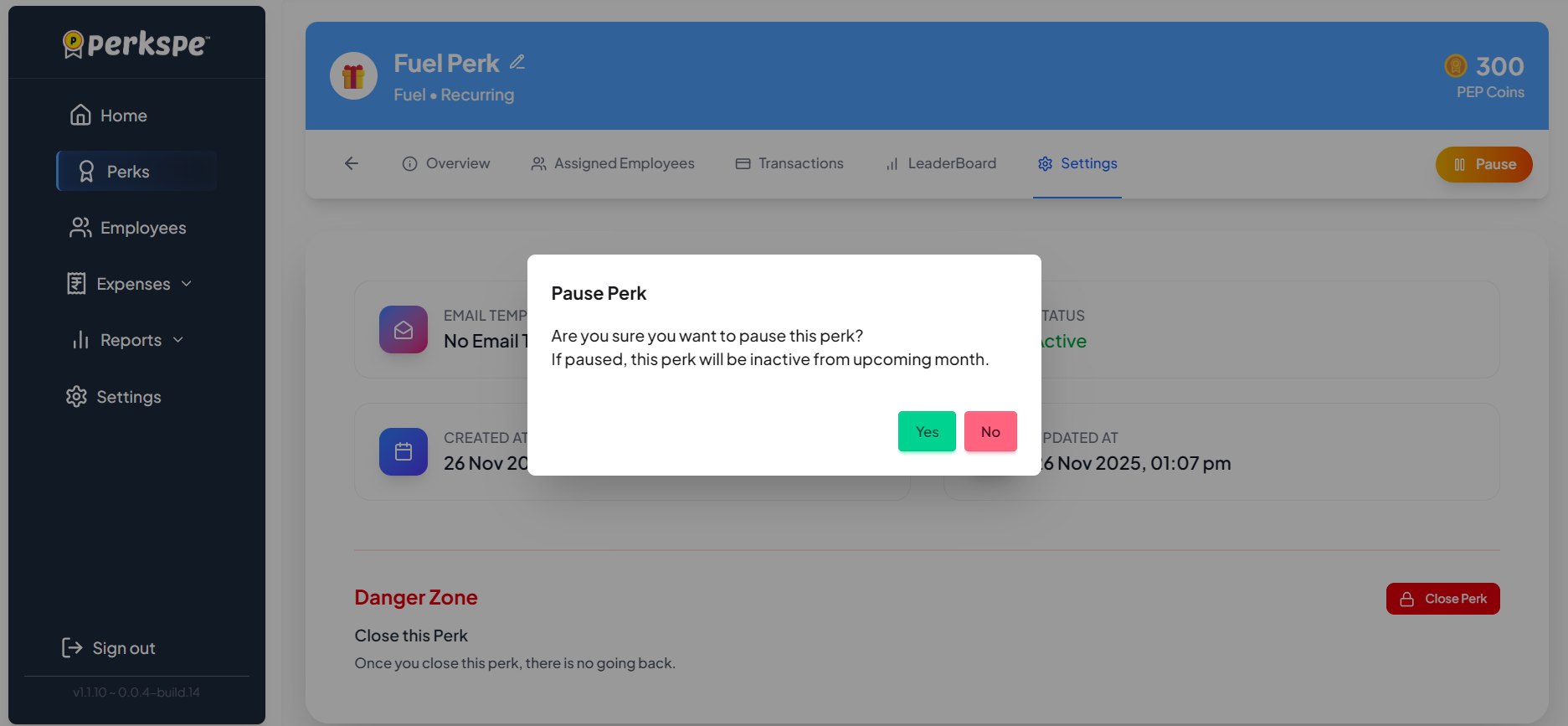
Confirm PauseClick Yes to confirm the pause action.
How to Resume a Perk
To reactivate a paused perk, follow these simple steps:
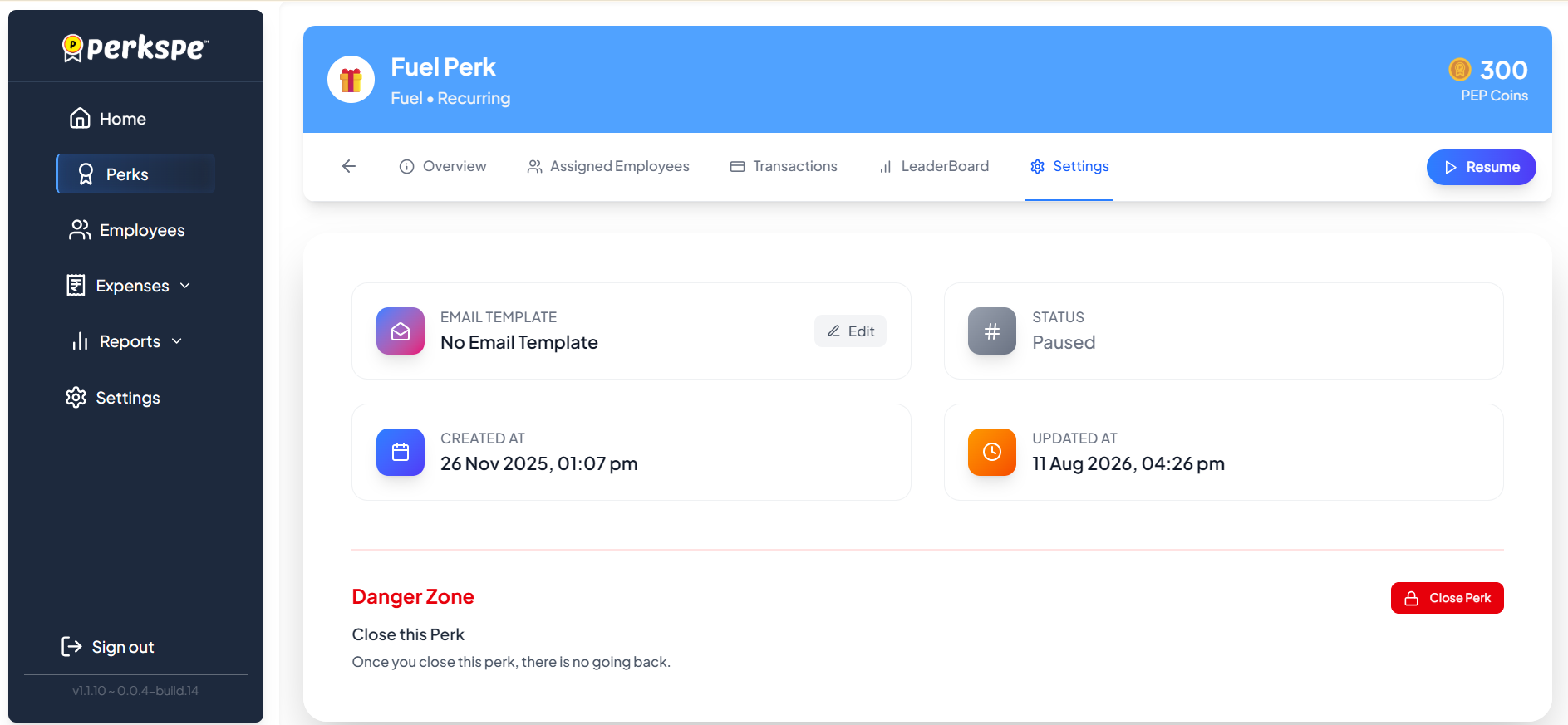
- Navigate to the paused perk and open the Settings tab.
- Click the purple Resume button.
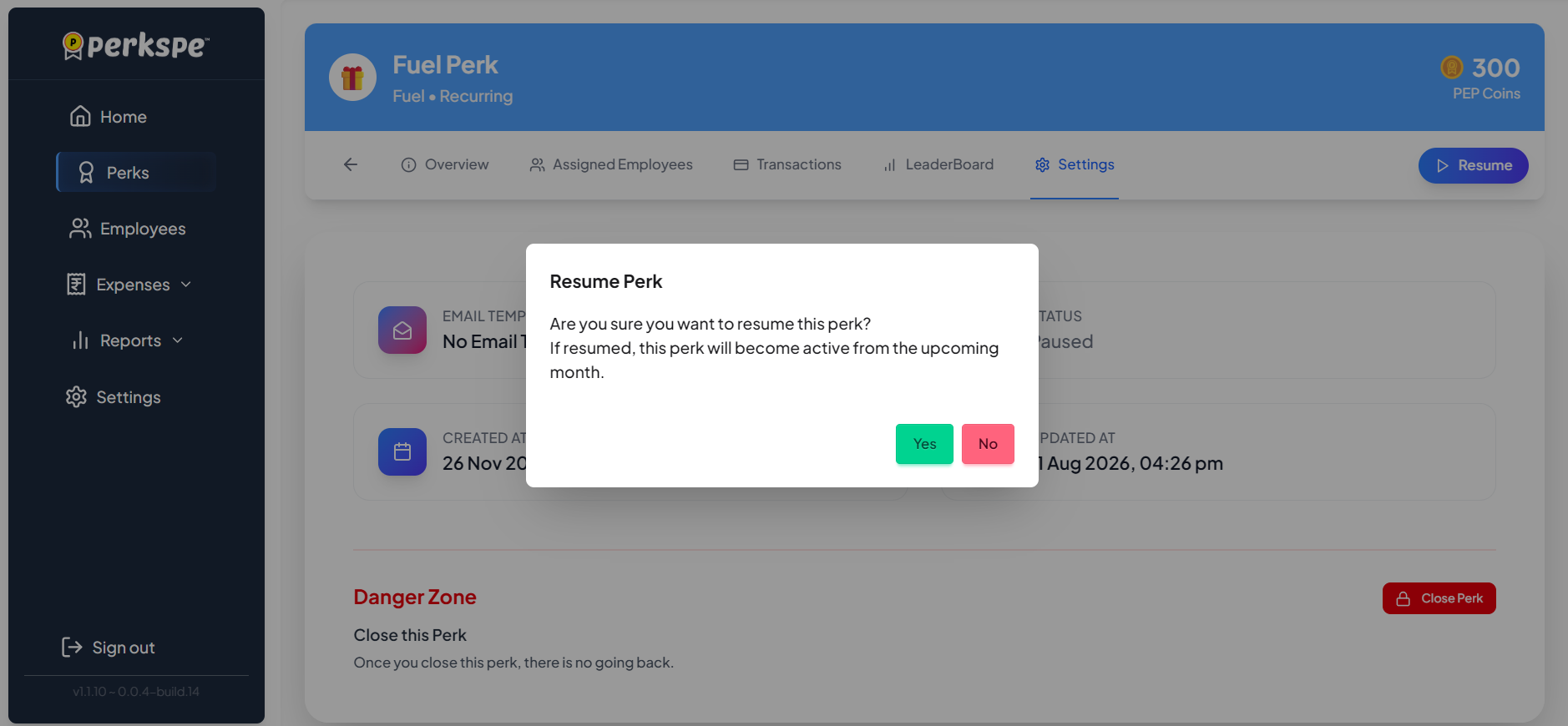
- Confirm when prompted — the perk becomes active from the upcoming month.
Quick Reference Summary
| Action | Button | Effect |
|---|---|---|
| Pause | Orange Pause | Perk stops from next month |
| Resume | Purple Resume | Perk restarts from next month |