Expense Approval
Managers and finance teams review submitted expenses and decide whether to approve or reject them.
Approval Workflow Overview
📤 Employee Submits → 👀 Approver Reviews → ✅ Approved or ❌ Rejected → 📦 Reimbursement
How to Review Expenses (For Approvers)
Step 1: Open Expenses
From the sidebar, click Expenses.
Step 2: Select the Expense
Click on a submitted expense to view its details.
Step 3: Review the Information
Check all the details:
- Expense title and description
- Amount and category
- Vendor information
- Attached receipts
- Location data
Step 4: Make a Decision
At the top-right corner, you'll see two buttons:
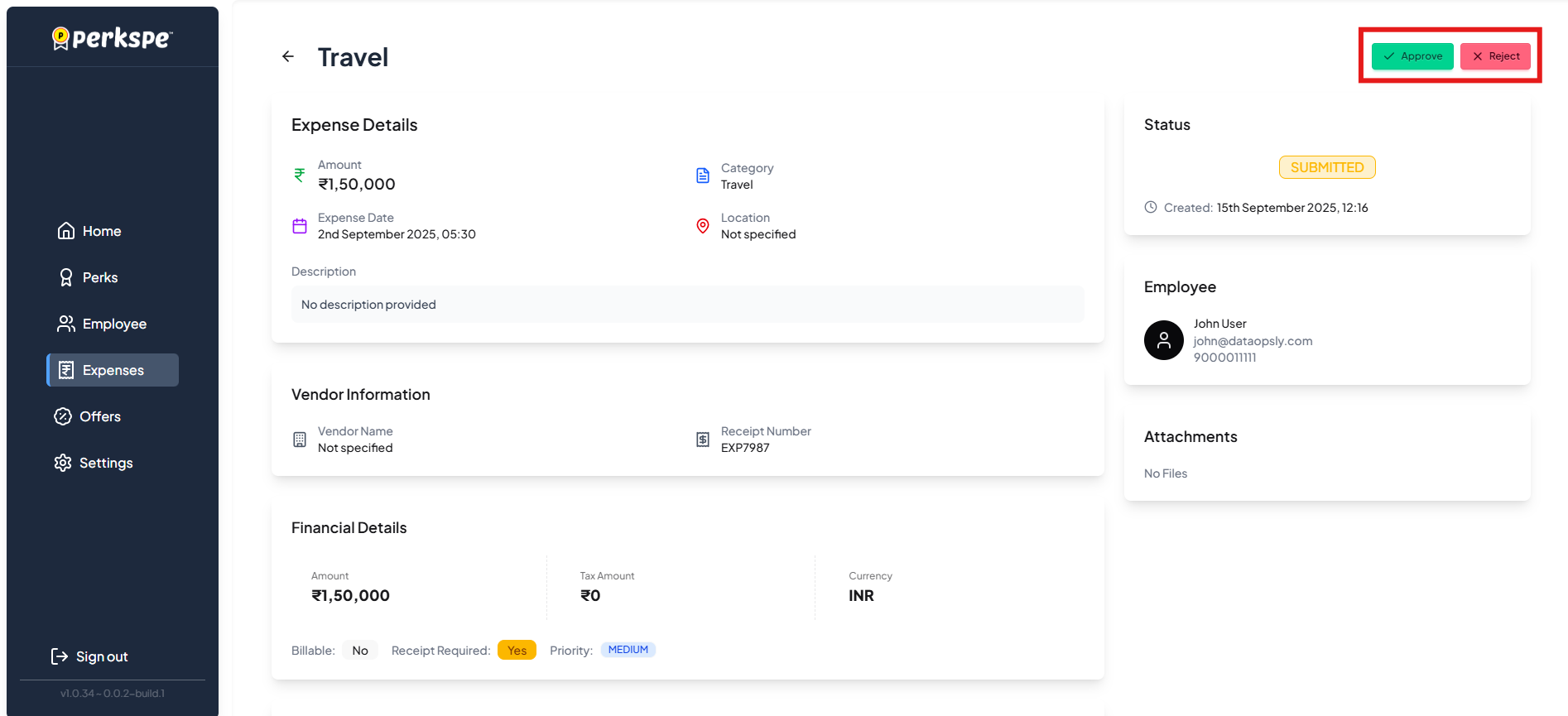
| Button | Action |
|---|---|
| ✅ Approve | Accept the expense |
| ❌ Reject | Decline the expense |
How to Approve an Expense ✅
-
Click the Approve button

-
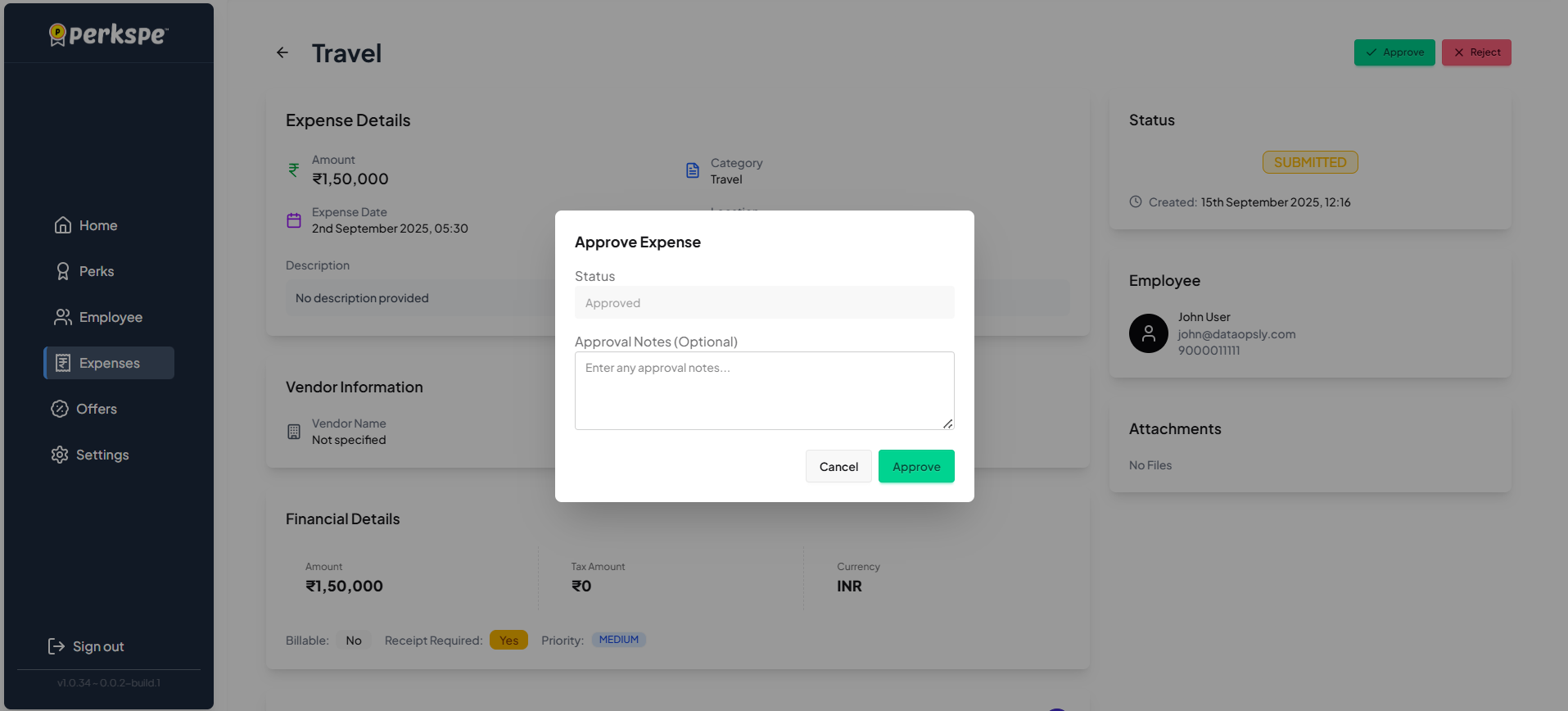
An approval popup appears
-
Add approval notes (optional)
- Example: "Approved under client project ABC"
-
Click Approve to confirm
After Approval
- Status changes to Approved
- Employee is notified
- Reimbursement process begins
How to Reject an Expense ❌
-
Click the Reject button

-
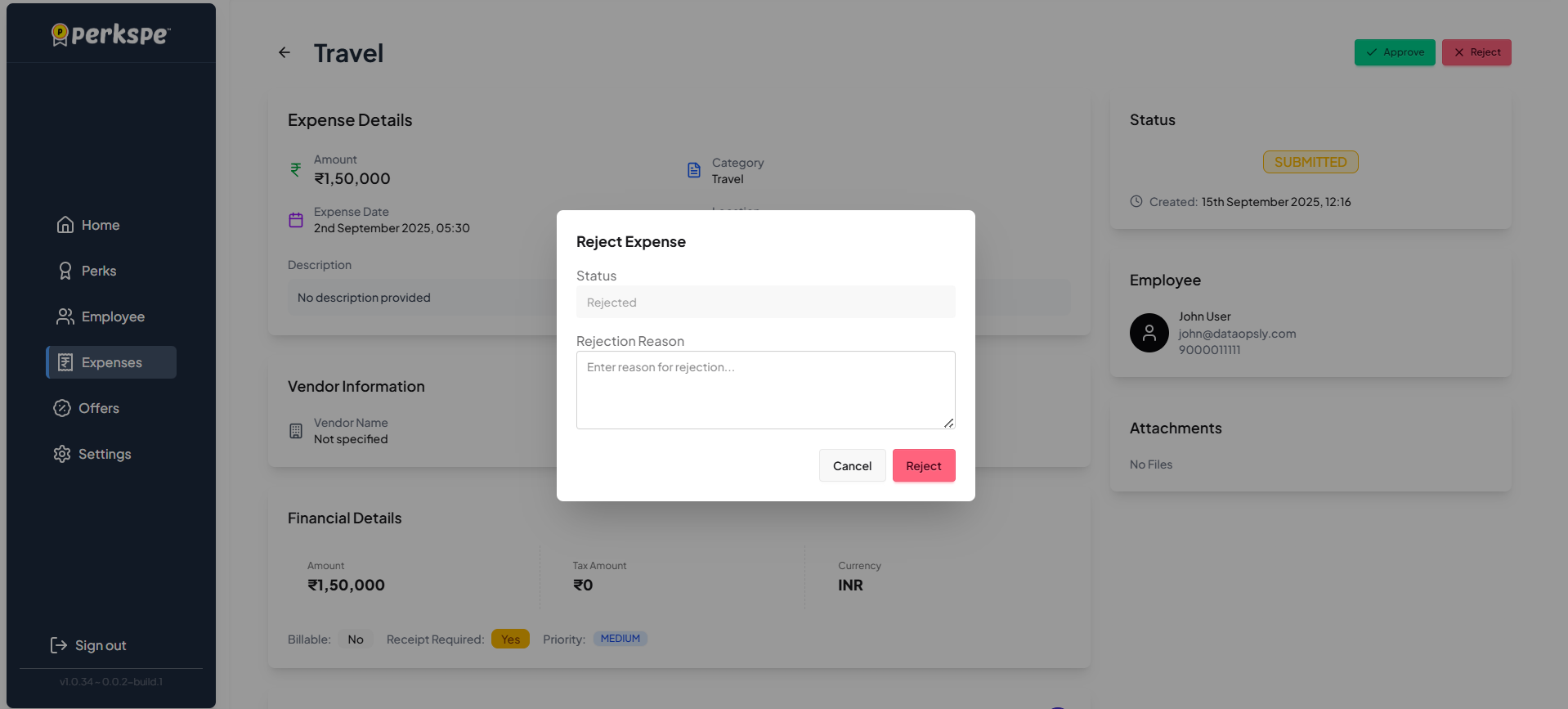
A rejection popup appears
-
Enter the reason for rejection (required)
- Example: "Missing receipt" or "Amount exceeds policy limit"
-
Click Reject to confirm
After Rejection
- Status changes to Rejected
- Employee is notified with the reason
- Employee can revise and resubmit
Tracking Expense Status
All approved and rejected expenses can be tracked in the Expenses menu.
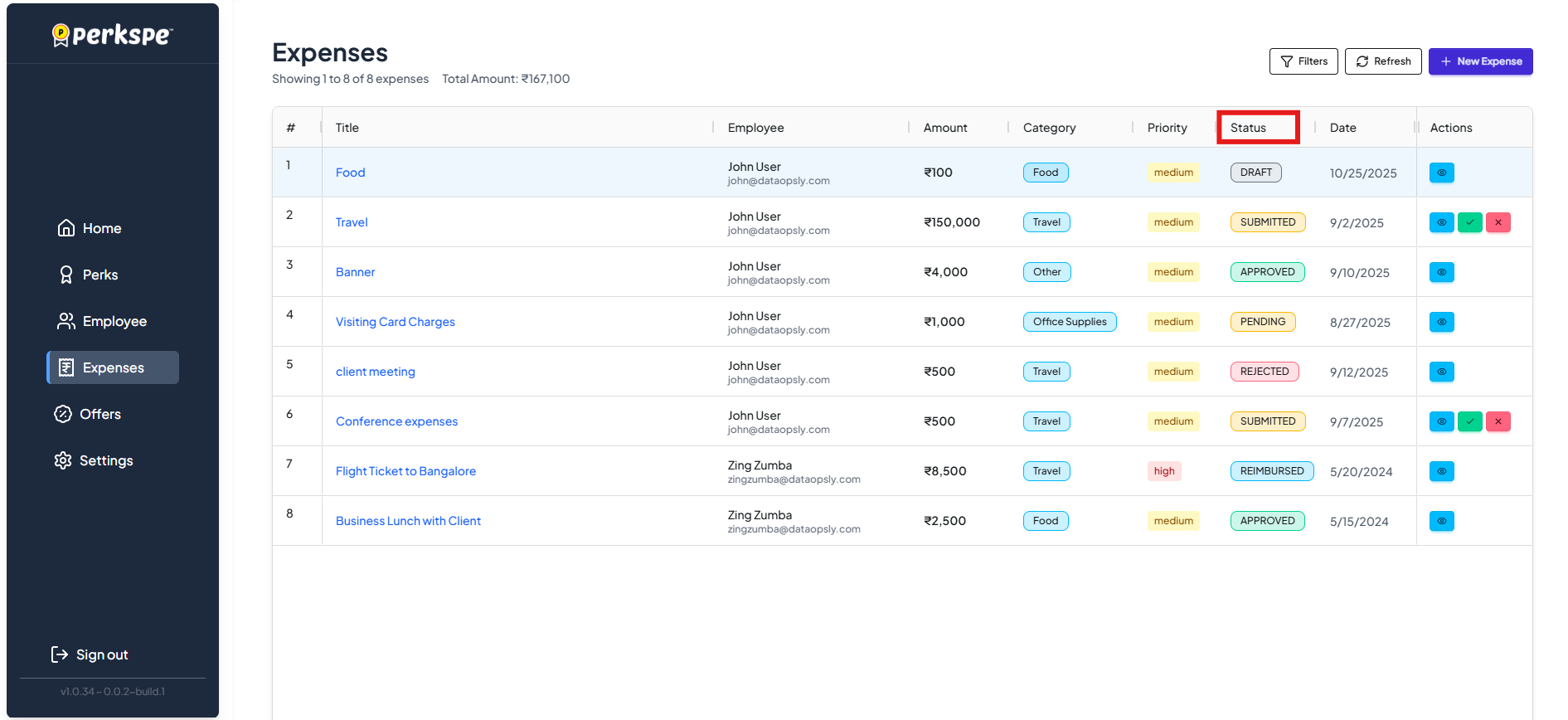
Status Indicators
| Status | Meaning |
|---|---|
| 🟡 Pending | Waiting for review |
| ✅ Approved | Accepted, processing reimbursement |
| ❌ Rejected | Declined, see comments for reason |
Quick Reference for Approvers
| Task | Steps |
|---|---|
| Review expense | Expenses → Click expense → Review details |
| Approve | Click Approve → Add notes (optional) → Confirm |
| Reject | Click Reject → Enter reason → Confirm |
| View all expenses | Expenses → Filter by status |